Documentation / MCP / Getting started

Flying MCPResearch, Upload & Skills

Research products, prepare listing drafts and run reusable skills with your AI assistant. This guide explains the available MCP tools through practical prompts and real screenshots.

Getting startedMCP guideUpdated October 29, 2026

Choose what you want to do#

Follow one public example#

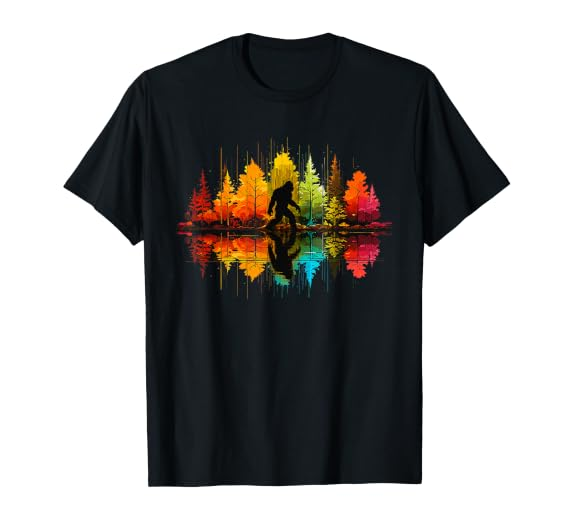
Bigfoot forest artwork on a black T-shirt
Public example

Bigfoot Walking Forest Sasquatch Woods Nature Reflection T-Shirt

B0H7J71SJW ↗ · Amazon US · Standard T-shirt
Keyword: hiking

The same ASIN and keyword appear throughout this guide. They demonstrate public research, not access to a seller’s Merch account. Dates, ranks and result counts in screenshots describe that particular run.

Try this prompt

Use Flying to look up B0H7J71SJW on Amazon US. Show its publication date, price, latest stored BSR, observation date and historical best BSR.

What this connection can do#

Research includes product research, keyword tools and trademark research. Upload covers AI listing drafts and Excel handoff. Skills combine tools into Seller Watch and Find Copycats workflows.

research / Getting started

Connect Flying

Connect Flying to your AI assistant as a direct MCP connection or through a plugin. The choice is yours, depending on what your AI client supports. Find the setup guide in Flying Research → Settings → MCP.

Getting startedMCP guideUpdated October 29, 2026

Start in Flying Research#

Flying works with AI assistants and development tools that support remote MCP servers over Streamable HTTP. You can add Flying directly as an MCP connection or configure it as a plugin in a client that supports plugins. Choose whichever option suits you; both connect to Flying’s MCP server.

  1. Sign in to Flying Research → Settings → MCP ↗. This page provides your Server URL, authentication options and connection management.
  2. Copy the Server URL shown there. Open Setup guides and help to find the connection instructions for your AI client.
  3. For a direct MCP connection, add a remote server named Flying in your AI client’s integrations or MCP settings. For a plugin, use your client’s plugin setup to connect to Flying. Enter the complete server URL and choose Streamable HTTP, where a transport choice is offered.
  4. Authenticate using OAuth sign-in or a personal bearer token, as supported by your client. Review the permissions, save the connection and enable Flying’s tools for your conversation.

Use the URL shown in Flying’s settings for your environment, including /mcp. Cloud-hosted clients need a publicly reachable HTTPS endpoint; a local development endpoint needs a secure tunnel for those clients.

Follow the guide for your AI client#

Flying’s Settings → MCP → Setup guides and help contains general setup instructions and client guides, including Codex, VS Code, Claude, Claude Code and Cursor. Follow the guide for the client you use. Other MCP-compatible AI assistants use the same Flying server URL; their menus and supported authentication options can differ.

Flying’s MCP setup instructionsOpen Settings → MCP in Flying Research and expand Setup guides and help. These general instructions apply to compatible AI clients; client-specific guides follow below in Flying. The crop contains no credentials or account information.

Connection instructions checked against Flying’s MCP settings on October 29, 2026.

Ask your AI to help you connect#

You can also give your AI assistant the setup guide from Flying Research → Settings → MCP ↗ and ask it to help you connect. Share the guide link or copy its instructions into the conversation. If the page requires sign-in and your AI cannot open it, paste the setup instructions so it can guide you through your chosen MCP or plugin setup.

Try this prompt

Help me connect Flying to my AI assistant using the guide in Flying Research → Settings → MCP. Explain the direct MCP connection and plugin options supported by my client, then guide me through the option I choose. If you cannot access the guide, ask me to paste its setup instructions.

Share the instructions only. Enter passwords and tokens in the dedicated authentication fields, not in the conversation.

Personal tokens and connection slots#

If your client uses a personal bearer token, create it in Flying → Settings → MCP. Choose a descriptive name, required permissions and expiry, then copy it when displayed. A token is shown only once. Keep it in your client’s credential field.

Token lifetime is currently 1 to 90 days, with a 30-day default. Expiration and permissions are independent: an unexpired token can still lack a required permission.

Confirm the connection#

Try this prompt

Which Flying research tools and skills are available on this connection? Then look up the public ASIN B0H7J71SJW on Amazon US.

research / Getting started

Permissions & access

A working connection, the right permission and an eligible subscription are separate requirements.

Getting startedMCP guideUpdated October 29, 2026

Set permissions in Flying#

Open Flying Research → Settings → MCP ↗. Under Personal access tokens or OAuth connections, find your existing connection and choose Modify permissions. Search for a permission or select the checkboxes your task needs, then choose Save permissions (or Approve and save when granting additional OAuth access).

Choose access in Flying’s permission editorThe real Flying UI shows searchable permission labels and checkboxes. Selected boxes illustrate this example connection; choose the permissions your own task needs. No account details or credentials are included.

The labels in Flying describe what each permission allows. The table below maps common tasks to the technical permission names returned by MCP.

Choose permissions for your task#

TaskPermission
Stored product research, images, Seller Watch analysisresearch:read
Niche Analysisresearch:niche-analysis
Real Time Researchresearch:live
MCP Research Board, including reading itresearch:board:write
Trademark search / manage watch or term liststrademark:read / trademark:write
Keywords / live jobs / list changeskeywords:read / keywords:live / list-specific permissions
Select owned library designsupload:read
AI listing estimate and generationupload:read + listing:ai:generate
Excel read / exportlisting:ai:generate / additionally files:export
Research CSV exportresearch:read + files:export

If a permission is missing#

The tool should identify the missing permission and the next step. Open the existing token’s permissions in Flying Settings → MCP, or reconnect OAuth with the required access. You usually do not need another personal token.

Research subscription checks still apply after permission checks. Enabling a permission does not purchase a subscription or add API-token balance. See the tool reference for each exposed tool’s exact scopes.

Try this prompt

Explain the Flying error and name the exact missing permission. Do not repeat the failed operation until access is available.

research / Basic Research

Best Sellers & Seller Trends

Find stored Amazon products by phrase, marketplace and product, then inspect the evidence behind their ranks.

Basic ResearchMCP guideUpdated October 29, 2026

Read the result correctly#

Lower BSR is stronger within the same Amazon category. Read each stored BSR together with its observation date to understand when it was recorded. Several ASINs can represent related variants rather than independent artwork. Statistics describe the returned page unless a tool explicitly says otherwise.

A stored hiking search with your AI assistantAn eight-result US T-shirt example showing ASINs, publication dates and stored BSRs, with observation dates where available. Captured using the local test connection.
research / Basic Research

Product details & history

Resolve an exact ASIN and examine its listing, public artwork and dated historical observations.

Basic ResearchMCP guideUpdated October 29, 2026

Verify the identity#

Bigfoot forest artwork on a black T-shirt
Public example

Bigfoot Walking Forest Sasquatch Woods Nature Reflection T-Shirt

B0H7J71SJW ↗ · Amazon US · Standard T-shirt
Keyword: hiking

Try this prompt

Look up B0H7J71SJW. Confirm marketplace and product, then show the full available BSR history and the best observed BSR. Keep missing dates visible.

For Merch products, the detail lookup uses type: mba; KDP is separate. Check the returned ASIN, marketplace and product before attributing evidence. A failed backend request does not prove the ASIN is absent.

Public details for B0H7J71SJWThe Flying UI provides context for the same public product returned by MCP. Publication date and ASIN are distinct from the rank’s observation date; UI sales figures are estimates.

Explore the BSR history#

The example returned stored BSR 312,290, observed October 26, 2026 at 00:45 UTC, and best observed BSR 169,740. These figures show the recorded example; request a new lookup to refresh the product’s research data.

Use dated observations to follow changes in BSR and identify the best recorded rank. Response coverage and truncation indicators show which part of the history is included. Seller Watch’s dedicated cohort tool retrieves the relevant comparison period for its analysis.

Compare products within compatible categories and the same time window, using the observations recorded for each week.

Compare selected products#

Try this prompt

Find relevant public hiking T-shirts on Amazon US, then compare B0H7J71SJW with two selected competitors side by side. Show price, publication date, dated BSR history and the main differences.

Use price, BSR, publication-age and review filters to focus your search. Choose up to three products for a direct comparison and ask your AI to explain their performance over the same period.

research / Basic Research

Archive & removed observations

Explore earlier product snapshots and recorded removal observations to understand how a market developed.

Basic ResearchMCP guideUpdated October 29, 2026

Research a past period#

Try this prompt

Find stored US T-shirt archive evidence for hiking around September 2026. State the dates, products and coverage actually available.

Use Archive to inspect available recorded evidence for a past date or period. Keep the snapshot date distinct from publication date and today’s BSR. An archive result may have different historical coverage from a product detail.

The Deleted tool returns recorded removal observations. A product absent from one search, a failed lookup or an empty historical week is not sufficient evidence that Amazon deleted it.

research / Basic Research

Real Time Research

Research current Amazon listings, discover competitors and compare fresh BSRs, prices and publication dates.

Basic ResearchMCP guideUpdated October 29, 2026

Start, wait and continue#

Try this prompt

Run live research for hiking on Amazon US standard T-shirts, sorted featured. Continue sequential pages when needed within the connected limits. Show pages searched, products returned, scrape failures and the reported Amazon total separately.

  1. Choose the keyword, concrete marketplace/product and sorting before starting.
  2. Use the default bounded status wait. While active, actually wait retryAfterSeconds before polling the same job again. HTTP 429 does not stop its worker: honor Retry-After/resetAt and resume that job. A terminal page has ended even when partial; use its continuation information.
  3. If more results are needed and continuation is available, request the next page with the same filters. Complete or stop that page before starting another search.
Returned products and reported search totalsA Bigfoot forest live search for the example reported 114 returned products over three pages. Reported Amazon totals and scrape failures are shown separately; broader hiking context is labeled.

What counts as today’s BSR?#

A positive BSR for the exact ASIN, marketplace and product returned by a successfully completed live query counts as today’s BSR, even when its lastObservedAt is null. This also applies to usable rows from terminal completed_with_failures and limited jobs; disclose failed scrapes and retain the live-capture date separately from source timestamps.

Running, cancelled or failed jobs do not establish completed live verification. If the target ASIN is absent, report that explicitly. Do not substitute a visually or textually similar product’s rank.

research / Basic Research

Niche Analysis

Explore competition, product performance and demand trends for your niche using Flying’s research database.

Basic ResearchMCP guideUpdated October 29, 2026

Keep the same niche definition#

Try this prompt

Analyze hiking for Amazon US standard T-shirts. Show matched products, sample size, dated demand history, coverage and confidence. Label hiking as broader context for the Bigfoot forest design B0H7J71SJW.

Choose your marketplace, product and main keyword. Use standard or detailed mode to explore historical demand series, or summary mode for a quick overview. Compare a focused design concept with a broader keyword to understand both direct competition and the wider market.

Confidence and broader hiking contextThe example compares the focused Bigfoot forest concept with the broader hiking market. Demand figures are BSR-based estimates, presented with their research context.

Turn niche data into a comparison#

Compare matched products, historical BSR movements and demand trends for your chosen period. Sample sizes, observation dates and confidence help your AI explain which patterns the data supports.

Demand estimates are modeled from BSR observations. Ask your AI to show the period and method alongside the figures so you can compare niches consistently.

Combine Niche Analysis with Real Time Research for the current competitive picture and Seller Watch for the performance of individual products. Use the same primary phrase across repeat checks, and explore broader terms as additional market context.

research / Basic Research

Ideas, keywords & brands

Explore additional research views while keeping market, product and relevance explicit.

Basic ResearchMCP guideUpdated October 29, 2026

Expand a topic thoughtfully#

Try this prompt

Explore stored hiking research ideas, related keywords and public brands on Amazon US. Separate Bigfoot forest concepts from general hiking slogans.

Explore related keywords, synonyms, public brand collections and niche ideas to find another angle on your topic. Ask for normal or long-tail keywords, extract useful phrases from text, or generate keyword tags. Product-rank lookup adds recorded Amazon clothing ranks for selected ASINs.

Brand collections group public listings by their recorded brand. Use them to compare positioning, wording and design concepts.

Use events as research context#

Try this prompt

Find relevant upcoming outdoor or hiking occasions for the US market. State their dates and explain which need further keyword or product validation.

Event and trend tools help plan a topic. An event match alone does not establish product demand. Validate with product and keyword evidence, and keep recurring reminders in your assistant’s scheduling feature.

research / Keywords

Keyword research

Discover relevant search terms, compare demand signals and organize keywords for your designs and listings.

KeywordsMCP guideUpdated October 29, 2026

Search, expand and compare#

Try this prompt

Research hiking keywords for the US. Expand relevant phrases, compare available demand history and identify terms suitable for the Bigfoot forest concept B0H7J71SJW. Show sources and missing metrics.

Keyword Search starts a live job that the assistant polls. Suggestions, tags, trends, Hunter and Product Explorer support different questions. Use the exact supported marketplace/source options returned by the selected tool.

A text match, suggestion frequency, estimated search demand and a product’s BSR are different signals. Preserve source, period and missing values when comparing them.

Clean and retain useful terms#

Workbench can clean and format text. Keyword Lists can retain chosen collections when you explicitly ask to save them. Reading, saving and deleting lists require different permissions. Keep a short context note: buyer intent, product, marketplace and why the terms were selected.

Google volume/CPC, suggestions and trends require an eligible Basic/Pro plan; Explorer and Hunter require Pro. Follow the tool’s returned plan requirement.

Try this prompt

Clean the hiking keyword collection: deduplicate, remove unrelated terms and group it by buyer intent. Show the proposed list before saving it.

From a seed phrase to a useful keyword list#

Start KW Search with your seed phrases, then use a completed search as the starting point for KW Hunter. Product Explorer shows observed ASIN ranks for a keyword from that completed search. Clean the useful terms in Workbench and save your chosen keyword list.

Free accounts can start with one seed using cached data. Basic and Pro add Google search-volume, CPC and competition metrics; Pro also enables Hunter and Product Explorer. Observation months show when demand metrics were recorded, and eligible paid accounts can request a refresh.

Try this prompt

Research hiking as a seed keyword. When the search completes, use Hunter and Product Explorer where available, group useful terms by buyer intent and show a proposed list for me to save.

research / Trademark

Trademark research

Search words and phrases, inspect complete records and retain the search conditions with your results.

TrademarkMCP guideUpdated October 29, 2026

Use the right search conditions#

Try this prompt

Search the phrase hiking in US trademark records. Include related phrase matches, show status, Nice classes, owner as recorded publicly, filing/registration dates and official record links. State the exact search conditions.

Choose the trademark office, search type, classes and statuses deliberately. Exact and phrase checks answer different questions. Open promising records instead of treating the first match count as the conclusion.

Bulk and text/listing checks can help examine wording, while recent/report views expose other recorded activity. Available coverage and refresh dates matter.

Watch and review wording#

Trademark watchlists retain selected terms; whitelist/blacklist tools manage your personal checking rules. These lists do not change the underlying trademark records. Only request a write when you want the account’s lists changed.

Check phrases, listings and watch terms#

Choose an exact, contains or phrase search to examine wording, or search by applicant to review an owner’s recorded marks. Check several phrases together, or ask your AI to check the title, brand and bullet points of a listing. You can also add, update or remove watchlist terms and manage your personal whitelist and blacklist.

Try this prompt

Check the phrases in my proposed hiking listing together in US trademark records. Show relevant matches with status and classes, then suggest which terms I may want to add to my watchlist. Show proposed list changes before saving.

research / Saved research

Boards & favorites

Save products and organize favorites so you can return to your research and compare developments over time.

Saved researchMCP guideUpdated October 29, 2026

Choose where to save a product#

Save toWhere you use itUseful for
MCP Research BoardThrough MCP in your AI assistant or chatKeep products ready for follow-up research, such as another Seller Watch.
FavoritesIn your AI assistant and in Flying Research → Research → FavoritesBuild and organize the same favorite collection you browse in Flying.

These are two separate saved lists in your Flying account. To use a product in both places, ask your AI to add it to both the MCP Research Board and Favorites.

The MCP Research Board#

Your saved product list for AI/MCP workflows. Manage it by asking your AI to show, add or remove products. Flying saves the ASIN, marketplace and product type to your account, so another chat connected to the same Flying account and environment can retrieve the list again. The list is managed through MCP and is separate from the web application’s ASIN Board and Favorites tab.

Try this prompt

Add B0H7J71SJW, Amazon US, standard T-shirt to my MCP Research Board and confirm it was saved. Keep the existing entries. In a later check, show my MCP Research Board and use these products for research.

Keep niche definitions and complete reports in your AI conversation or notes, alongside the saved product references. Include the keyword scope and chosen competitors so your next check follows the same research context.

research:board:write

Favorites in Flying Research#

These are the same products you see in Flying Research’s Favorites tab. Save Amazon, Redbubble or Spreadshirt products, with an optional tag for each item. Your AI uses the same favorites collection as Flying Research → Research → Favorites ↗. Products saved here through MCP appear in that tab for the same Flying account. Your AI can also read existing favorites, organize their tags and remove entries when you ask. Refresh the Favorites page to see recent changes.

Try this prompt

Add B0H7J71SJW, Amazon US, standard T-shirt to my Flying Research Favorites with the tag hiking. Confirm it was saved so I can find it in the Favorites tab.

Reading favorites uses research read access; saving and managing favorites have their own permissions.

research:readresearch:favorites:writeresearch:favorites:manage
research / Saved research

Research export & sharing

Export selected research products as CSV and share the references you choose.

Saved researchMCP guideUpdated October 29, 2026

Create a research CSV#

Try this prompt

Export up to 50 of the hiking research products retrieved in this conversation to a CSV. Keep the selection within this run’s remaining record allowance and explain the exported columns.

The current CSV contains ASIN, marketplace, product, title, brand, price and BSR. Keep BSR observation dates and sources in your research report alongside the CSV. At most 50 selected products are exported per call.

File export needs the export permission in addition to research read access. Export your current selection to continue working with the data in a spreadsheet or share it with your team. Use the downloadable artifact returned by the tool.

Sharing is an explicit action#

The research image email tool sends information outside the conversation. State the intended recipient and selected products explicitly before asking the assistant to send anything. Sharing requires research:share.

upload / Getting started

Upload · start here

Prepare listing drafts from your own design files, workbook rows or selected upload-library designs, then review the result.

Getting startedMCP guideUpdated October 29, 2026

From your artwork to a listing draft#

  1. Select the exact designs and choose Vision, Keywords or Template.
  2. Read the available options and preview the total API-token charge for the selection.
  3. Approve that displayed total before generation. Review the resulting drafts and export a new workbook when needed.
The three generation methods in FlyingFlying UI context: Vision, Keywords and AI Template correspond to the methods exposed through MCP. Ask your AI assistant for these choices in the conversation. Current models and prices come from Flying’s options and preview tools.

What this release prepares#

The current MCP release can select owned library designs, generate draft text, read a supplied standard workbook and export a new listings workbook. Review the generated text and exported workbook, then complete product setup and publishing through Flying’s import and desktop-uploader workflow.

upload / Listing preparation

Select designs & files

Work with designs in Flying Design Management, local design images or Excel files. Choose what your AI can access and which tasks it should perform.

Listing preparationMCP guideUpdated October 29, 2026

Use local images and Excel files#

You can use local design images and Flying standard Excel files for Flying tasks. Attach the files to your conversation or give your local AI access to the relevant folder. What it can read, prepare or edit locally depends on that AI’s file tools and the access rights you grant.

Your AI can match images to Excel rows, prepare listing inputs and work with the generated text. For Vision, give it access to the actual PNG or JPEG design images; the Image Path column helps match each image to the correct row. Your AI can prepare compatible image copies and .xlsx files using the local file tools and access you provide.

Try this prompt

Use the design images and Flying standard Excel file I provided. Match each row to its image and prepare listings by Vision with the topic hiking. Show the selected files, design count, available models and total token quote before generation.

For Keywords or Template, provide your chosen keywords or rules. Tell your AI how to organize and save the resulting files.

Use designs from Design Management#

With library read permission, your AI can find and select your designs in Flying Design Management and use them for tasks such as generating listing text. Add listing-generation permission to use Flying’s AI listing service for those designs.

Choose designs by name or date range, or use quick selections such as newest, recently edited, missing listings and duplicates. You can also ask for supported platform, upload-status, listing-type and product filters. For example, “last 7 days” uses your timezone and includes today plus the previous six calendar days.

Try this prompt

Find my Design Management designs added during the last 7 days in Europe/Berlin. Show the selected designs and count, then help me generate listings. Show the total token cost and wait for my approval before generating.

On connections that offer Design Management editing, the corresponding write permission also lets your AI save approved listing changes. The listing results section explains where generated text appears and how to apply it.

upload / Listing preparation

AI listing methods

Choose how Flying should create the text, then generate the selected designs together using the reviewed settings.

Listing preparationMCP guideUpdated October 29, 2026

Vision, Keywords or Template#

MethodInputUseful when
VisionYour actual design image; optional topic/instructionsArtwork content should guide the wording.
KeywordsYour main and optional supporting keywordsYou already know the intended vocabulary.
TemplateYour keywords, blacklist and platform rulesYou want reusable wording constraints.

Ask your AI for the current model choices. Choose platforms, languages and text rules in Flying’s AI Listing settings before generation. Flying uses those saved settings to prepare the configured Global and Amazon Merch language variants, plus Displate listing text and keywords.

The three generation methods in FlyingFlying UI context: Vision, Keywords and AI Template correspond to the methods exposed through MCP. Ask your AI assistant for these choices in the conversation. Current models and prices come from Flying’s options and preview tools.

Where your generated listings appear#

After you approve the total token cost and generation completes, Flying returns the listing text for each selected design to your AI. You can see the titles, brands, bullet points, descriptions and Global keywords in the conversation, or ask your AI to export them to Excel.

In the current MCP listing-generation flow, the text is returned for review rather than automatically written into Design Management. There is no separate draft page. Applying the generated text to your saved designs is a separate save or import step.

If your connection offers listing editing and you have granted write access, ask your AI to save the approved text to those designs. You can also copy the text into Flying or use the Excel handoff. Review the wording against your artwork and intended audience before applying it.

upload / Listing preparation

Token preview & approval

Approve the current total cost for the chosen selection, method and model before Flying generates anything.

Listing preparationMCP guideUpdated October 29, 2026

Why approval is needed#

These are Flying API tokens from your Flying account. Your AI assistant’s own subscription or usage billing is handled by its provider.

Preview first#

  1. Confirm the selected design count and generation method. If no method was chosen, the assistant should ask.
  2. Request the current total quote. Review the design count, model and total Flying API-token charge.
  3. Approve that exact total. If selection, model, method or price changes, obtain a new preview before generating.
Try this prompt

Quote the total Flying API-token charge for my selected designs using Vision and the current model options. Do not generate until I approve the displayed total.

Keep the approved selection together#

The batch minimum and rounding apply once across the selection. Repeating single-design paid calls can produce a different total. Your assistant should use one approved batch rather than splitting the request into separate paid calls.

Opening options, reading a workbook and exporting already generated drafts do not themselves consume AI generation tokens. A generation request is billed under Flying’s current rules.

upload / Listing preparation

Standard Excel handoff

Read a supplied workbook and export a new listings workbook after generation and review.

Listing preparationMCP guideUpdated October 29, 2026

Read rows and match the image files#

Provide a Flying standard .xlsx file to the assistant along with the matching design images. You can choose the worksheet, header row and starting row, then ask your AI to work through the selected rows. The Image Path column keeps each row matched to its design.

Keep the original image path labels with each draft so that the exported row can be mapped back to the correct design. The current row allowance is shown in Limits & continuation.

What the export contains#

Try this prompt

Export the reviewed listing drafts to a new Flying standard .xlsx workbook. Preserve each original Image Path label. Explain which product setup fields still need review.

The exporter creates a new Listings workbook with Image Path and the generated text for your configured Global, Amazon Merch and Displate outputs. The new workbook uses a simple layout focused on listing text, while your source workbook stays unchanged. Choose products, fit types, colors and prices during product setup.

Use the returned download link, check the workbook, then complete the appropriate import and desktop-uploader workflow. Publication takes place in your import and desktop-uploader workflow.

skills / Skills

Skills · choose a workflow

A skill tells your assistant how to combine Flying tools into a complete, evidence-based workflow.

SkillsMCP guideUpdated October 29, 2026

Two skills, two questions#

Try this prompt

Which Flying skills are available? Explain when I should use seller-watch and find-copycats.

Ask for the skill by name. The assistant loads its current instructions from Flying and executes the required stages. Loading the instructions alone does not run the research.

Know when a run is complete#

A useful report brings together the findings, completed research stages and products reviewed. Coverage and observation dates help you follow the analysis and choose the next step.

skills / Skills

Seller Watch

Is this product outperforming, underperforming or following its niche? Compare relative history instead of reading an isolated BSR change.

SkillsMCP guideUpdated October 29, 2026

Start a Seller Watch#

Bigfoot forest artwork on a black T-shirt
Public example

Bigfoot Walking Forest Sasquatch Woods Nature Reflection T-Shirt

B0H7J71SJW ↗ · Amazon US · Standard T-shirt
Keyword: hiking

Try this prompt

Run seller-watch for B0H7J71SJW on Amazon US standard T-shirts. Keyword: hiking. Use Europe/Berlin. Label the exact Bigfoot forest concept separately from the broader hiking market. Include the 12-week observed-cohort rankings, recent matched-peer comparison and full stage/coverage checklist. Retain the niche definition for the next check.

“Hiking” is deliberately broad in this example. The report must distinguish general hiking context from direct Bigfoot forest competitors. Keeping the same definition matters when comparing repeat runs. You can request several ASINs in one conversation; your AI prepares a separate product and niche report for each.

What the assistant must do#

  1. Resolve the exact product and verify its MCP Research Board save.
  2. Record concept, primary competitors, broader context, exclusions, marketplace and product. Use stored target BSR only when its observation is at most seven days old; otherwise attempt an exact-product live refresh.
  3. Always run a separate niche Live Research query and Niche Analysis for the defined scope.
  4. Use the stored-cohort analysis tool when available, allocating the remaining record budget including the target. Its displayed examples do not define the analytical population.
  5. Report observed weekly ranks, matched recent changes, coverage, limitations and a supported relative conclusion. State when evidence is insufficient.

Read the twelve-week ranking#

The analysis uses the previous 12 completed weeks from Monday to Sunday in your timezone. Each product contributes its latest valid positive BSR within that week. Missing observations remain gaps. Show currentIncompleteWeek separately with its dated observations and comparisonAvailable; it is not a simultaneous live-market rank.

Only known current category labels matching the target enter comparative statistics. Unknown or incompatible labels are excluded; historical category compatibility remains provisional. A target-only 1/1 means no observed compatible peers. The weekly denominator can change; ties share a position. These are not Amazon search positions or a census of the entire niche.

The recent comparison uses the latest 30 calendar days versus the preceding 30. It compares each product’s median BSR change with the median change of matched peers, excluding the target. Show observation counts and the subset with at least two observations per period when available. Sparse evidence limits the verdict.

Twelve completed weeks with observed denominatorsExample captured October 26: a twelve-week comparison using 43 stored peer histories, with 22 contributing weekly observations and five matching the recent comparison windows. Bigfoot forest is the focused concept; hiking supplies broader context. This historical capture uses the research method available at that time; the current category selection and report fields are explained in the workflow below.

Review the competitor comparison#

Report itemWhat it means
Discovered / relevant / histories checkedDistinct coverage stages, not interchangeable counts.
Peers with usable weekly historyThe population that can contribute to observed weeks.
Matched recent-period peersProducts with observations in both comparison windows.
Display examplesA short reading aid; not the number analyzed.
Pending candidates and gapsUnassessed identities, missing target weeks, truncation or blocked stages.

Review every assessed title and category exclusion in cohortReview, not only displayed examples. Uncertain or unrelated buyer intent remains context. If relevance exclusions cannot be applied within the remaining budget, label the statistics as the stored phrase cohort. Distinguish retrieved histories from category-compatible histories checked and histories excluded before analysis.

A complete Seller Watch combines the bulk history analysis with Live Research, Niche Analysis, board saving and visual relevance review. The stage checklist lets you follow the full workflow.

skills / Skills

Find Copycats

Discover potential artwork matches and inspect the actual images before describing visual similarity.

SkillsMCP guideUpdated October 29, 2026

Start with the original design#

Bigfoot forest artwork on a black T-shirt
Public example

Bigfoot Walking Forest Sasquatch Woods Nature Reflection T-Shirt

B0H7J71SJW ↗ · Amazon US · Standard T-shirt
Keyword: hiking

Try this prompt

Run find-copycats for B0H7J71SJW on Amazon US standard T-shirts. Keyword: hiking. Search stored Best Sellers plus live featured and live newest. Inspect the original and candidate images. For visually estimated matches of 90% or higher, show both ASINs, images, Amazon links, publication dates, dated BSRs and the specific similarities and differences. State actual visual review coverage.

Start with an ASIN, an Amazon product link or an attached original design image. Supply a keyword or ask your AI to infer a suitable niche from the design. Search within the same marketplace and product. The report includes image previews and direct image links so you can inspect the original and candidates.

The required discovery and review stages#

  1. Resolve and visually inspect the exact original.
  2. If it is genuinely missing from stored research, run exact-ASIN Live Research with brand exclusion disabled, verify the completed row and confirm the stored lookup afterwards. A backend or permission error is not a not-found result.
  3. Search all three sources: stored Best Sellers, live featured and live newest. Continue sequentially within the applicable limits.
  4. Deduplicate candidates and deliver their actual images in bounded batches. Inspect image layout, typography, illustration, shapes, colors and distinctive details.
  5. Report qualifying visual estimates with evidence and separate unreviewed candidates, variants, failed images and incomplete sources.

Images must reach the assistant#

Flying delivers the original and candidate artwork as native MCP images labeled by ASIN. Your image-capable AI assistant can inspect typography, illustration, colors and composition side by side, then explain its visual similarity estimate.

Start with the candidate preview and request further image batches to review additional designs. The report records which images were delivered and visually reviewed.

Visual review and evidence coverageExample captured October 26: the report records the review of 18 candidate images and the coverage of stored research plus featured and newest live searches, including stages still open at that point. This capture assessed whole-design similarity; the current workflow adds the separate core-illustration assessment described below.

Same theme, different artwork#

These are public product mockups returned for the exact catalog identities on October 26, 2026. They illustrate the image evidence the assistant can inspect; they are not an exhaustive candidate set.

What a qualifying match contains#

For illustration-led designs, assess both the distinctive core illustration and the whole printed composition. Include an estimated 90%+ core-illustration match even when the whole composition is below 90%, labeled estimated core-illustration match; whole composition differs. Changed text or backgrounds, uniform scale, placement or a horizontal mirror alone do not disqualify the same distinctive drawing. Generic subjects and materially different redraws do not qualify by themselves.

For a visually estimated match of at least 90%, state its scope and include the original and candidate ASINs, both Amazon links, publication dates, available BSR and its date/source, images and a short explanation of concrete similarities and differences.

When a qualifying similar design is found, include Amazon’s Report Infringement form ↗ for the rights holder’s review. The skill does not submit a claim or contact a seller.

Reference / Shared reference

Limits & continuation

Record allowances, live-search bounds and request-rate quotas measure different things. Use the limits returned by your connection.

Shared referenceMCP guideUpdated October 29, 2026

Current build limits#

These values are generated from this checkout’s policy files during the documentation build. Your connected server’s instructions, tool schema and continuation response take precedence.

AreaCurrent bound
Stored records500 total per user message; stricter tool-specific bounds still apply.
Stored search / call50 results; paginate sequentially.
Live Research3 consecutive pages · 48/page · 144 unique products per search at most; actual counts can be lower.
Live concurrencyOne active page job per account; finish or stop the current job first.
Image delivery / call6 images · 1024px maximum dimension · 256 KiB/image
AI listing batch / Excel100 entries/batch; up to 100 workbook rows per user message when reading.
Metered operation quota30/minute · 1000/day · per account (UTC buckets); honor the returned reset time.
Connections1 combined OAuth/personal-token connection per account in this configuration.

Choose how to continue#

Tell your AI whether to fetch more data, refine the search, compare results or stop. It should continue sequential pages automatically when your task needs more results and the remaining allowance permits it. After the applicable per-message allowance is reached, send another message to request more data, for example, “continue” or “show more results”. You can also ask for a different format or a deeper explanation of data already retrieved.

For Live Research, page jobs have their own bounded continuation. One completed page does not exhaust the search. Keep the same filters and use the returned continuation; do not restart or parallelize to bypass a bound.

Try this prompt

Continue the same research within the remaining allowance. Preserve the keyword, marketplace, product, filters and niche definition. State why you stop.

Why the numbers can change#

Limits are configuration and can evolve. The global record allowance is an instruction to the assistant, not a guaranteed server-side count of a chat turn. Tool schemas enforce their own per-call bounds. Smaller tool limits still apply.

Account quotas count metered JSON-RPC operations, not HTTP requests or returned records. Each operation in a batch is charged separately. Only recognized lifecycle and metadata methods are exempt from this operation quota; unknown or malformed requests remain metered. The route’s IP limiter still applies. Waiting for a quota reset does not add records to a turn allowance. Large reported Amazon totals do not override the live collection bounds.

Reference / Shared reference

Errors & next steps

Use the returned error category to choose the next action and retain partial evidence honestly.

Shared referenceMCP guideUpdated October 29, 2026

What the message means#

Error or symptomNext action
Authentication failed / 401Reconnect or replace an expired/revoked credential in the client’s authentication settings.
Permission denied / 403Enable the named permission on the existing connection or reconnect with the required scope.
Subscription requiredCheck the required Flying subscription; a token permission alone does not grant a plan.
Rate limited / 429Honor the returned retry/reset time. For reads or status checks, resume the same operation or jobId; HTTP 429 does not stop a running worker. Before retrying writes or paid requests, verify the current state and any required approval. Never automatically repeat paid generation. If retryable is false, follow recoveryAction instead of retrying.
Provider timeout / HTTP 408The backend did not finish in time. Narrow the keyword or add filters before trying again.
Product not foundThe stored catalog did not resolve that exact record. In Find Copycats, use exact-ASIN live bootstrap and verify persistence.
Invalid argumentCheck the field names, accepted values, concrete marketplace/product and per-call bounds.
Partial live job or missing imagesReport usable rows and failed stages separately. Do not claim complete discovery or visual verification.

A smaller result limit does not guarantee a fast query#

A tool may ask for only a few results while the database still has substantial work to find or sort them. The clearer timeout message does not change query execution or its duration.

If a write times out, it may have partially completed. Read its current state before retrying. For paid listing generation, an interrupted call may already have used credits.

Give support a useful reproduction#

Retain tool name, non-sensitive input, timestamp with timezone, error category and which independent stages worked. Remove Authorization headers, tokens, account details and private file paths before sharing logs or screenshots.

Reference / Shared reference

MCP tool reference

Explore Flying’s tools for product research, keywords, trademarks and AI listings.

Shared referenceMCP guideUpdated October 29, 2026

Available tools by area#

Browse 76 Flying tools by area to see how each one can help with your task. Tool descriptions are provided in English.

Research

research_niche_analysis

Analyze an Amazon Merch or KDP niche with the Flying Research backend. Returns total match counts, bounded design and best-seller samples, and MBA, Redbubble, and Spreadshirt keywords. Ranks are dated stored observations; null currentBsr means no verified rank within 24 hours. Summary omits historical time series by default. Listing limit: 500 records total per user message. Automatically paginate sequentially within the remaining allowance when needed. Stop at the allowance and wait for a new "next" message for another batch. No parallel batches, alternate-tool workarounds, or whole-library files that bypass the allowance.

flying_research_synonyms

Read synonyms for a keyword and language. Listing limit: 500 records total per user message. Automatically paginate sequentially within the remaining allowance when needed. Stop at the allowance and wait for a new "next" message for another batch. No parallel batches, alternate-tool workarounds, or whole-library files that bypass the allowance.

flying_research_tag_generator

Generate keyword tags from the stored keyword service. Listing limit: 500 records total per user message. Automatically paginate sequentially within the remaining allowance when needed. Stop at the allowance and wait for a new "next" message for another batch. No parallel batches, alternate-tool workarounds, or whole-library files that bypass the allowance.

flying_research_keywords

Search the keyword service using the app searchType. Listing limit: 500 records total per user message. Automatically paginate sequentially within the remaining allowance when needed. Stop at the allowance and wait for a new "next" message for another batch. No parallel batches, alternate-tool workarounds, or whole-library files that bypass the allowance.

flying_research_product_ranks

Read Amazon clothing product ranks for selected ASINs. Listing limit: 500 records total per user message. Automatically paginate sequentially within the remaining allowance when needed. Stop at the allowance and wait for a new "next" message for another batch. No parallel batches, alternate-tool workarounds, or whole-library files that bypass the allowance.

flying_research_archive

Search historical Amazon archive snapshots by archive_date and filters. Listing limit: 500 records total per user message. Automatically paginate sequentially within the remaining allowance when needed. Stop at the allowance and wait for a new "next" message for another batch. No parallel batches, alternate-tool workarounds, or whole-library files that bypass the allowance.

flying_research_trend_home

Read the research trend overview. Listing limit: 500 records total per user message. Automatically paginate sequentially within the remaining allowance when needed. Stop at the allowance and wait for a new "next" message for another batch. No parallel batches, alternate-tool workarounds, or whole-library files that bypass the allowance.

flying_research_brands

Search research brands with an optional minimum brand occurrence. Listing limit: 500 records total per user message. Automatically paginate sequentially within the remaining allowance when needed. Stop at the allowance and wait for a new "next" message for another batch. No parallel batches, alternate-tool workarounds, or whole-library files that bypass the allowance.

flying_research_official_brands

Read known official brands for a marketplace and product. limit bounds products across every brand group; offset continues within the same backend page. Follow nextOffset automatically when needed within the remaining record allowance. Listing limit: 500 records total per user message. Automatically paginate sequentially within the remaining allowance when needed. Stop at the allowance and wait for a new "next" message for another batch. No parallel batches, alternate-tool workarounds, or whole-library files that bypass the allowance.

flying_research_detail

Read a stored Amazon product detail by ASIN. Check the returned marketplace/product before attributing data. PRODUCT_NOT_FOUND means this connected catalog has no stored detail, not that the product is absent on Amazon. For Find Copycats, use the resolved marketplace/product to run an exact-ASIN Live Research lookup, wait for completion, then retry this stored lookup to verify ingestion. Do not treat permission or server failures as a missing product. Listing limit: 500 records total per user message. Automatically paginate sequentially within the remaining allowance when needed. Stop at the allowance and wait for a new "next" message for another batch. No parallel batches, alternate-tool workarounds, or whole-library files that bypass the allowance.

flying_research_competition

Read a bounded sample of ranked stored listings matching every keyword phrase in title or brand. Specify marketplace to restrict the market; omission searches all markets. Results are stored observations, not total live Amazon competition. Use niche analysis for aggregate niche metrics. Listing limit: 500 records total per user message. Automatically paginate sequentially within the remaining allowance when needed. Stop at the allowance and wait for a new "next" message for another batch. No parallel batches, alternate-tool workarounds, or whole-library files that bypass the allowance.

flying_favorites_list

Read saved favorites and their IDs for subsequent update/removal. Listing limit: 500 records total per user message. Automatically paginate sequentially within the remaining allowance when needed. Stop at the allowance and wait for a new "next" message for another batch. No parallel batches, alternate-tool workarounds, or whole-library files that bypass the allowance.

flying_favorite_update

Replace the tag on a saved favorite using its favoriteId. Listing limit: 500 records total per user message. Automatically paginate sequentially within the remaining allowance when needed. Stop at the allowance and wait for a new "next" message for another batch. No parallel batches, alternate-tool workarounds, or whole-library files that bypass the allowance.

flying_favorite_remove

Remove a saved favorite by favoriteId. Listing limit: 500 records total per user message. Automatically paginate sequentially within the remaining allowance when needed. Stop at the allowance and wait for a new "next" message for another batch. No parallel batches, alternate-tool workarounds, or whole-library files that bypass the allowance.

flying_favorite_tags

Read the current account favorite tags. Listing limit: 500 records total per user message. Automatically paginate sequentially within the remaining allowance when needed. Stop at the allowance and wait for a new "next" message for another batch. No parallel batches, alternate-tool workarounds, or whole-library files that bypass the allowance.

flying_research_niche_ideas

Find niche keyword ideas for a marketplace. Listing limit: 500 records total per user message. Automatically paginate sequentially within the remaining allowance when needed. Stop at the allowance and wait for a new "next" message for another batch. No parallel batches, alternate-tool workarounds, or whole-library files that bypass the allowance.

flying_research_events

Read upcoming calendar events and related designs. Listing limit: 500 records total per user message. Automatically paginate sequentially within the remaining allowance when needed. Stop at the allowance and wait for a new "next" message for another batch. No parallel batches, alternate-tool workarounds, or whole-library files that bypass the allowance.

flying_research_deleted

Search stored deleted-design observations. Deletion is not evidence of an infringement decision. Listing limit: 500 records total per user message. Automatically paginate sequentially within the remaining allowance when needed. Stop at the allowance and wait for a new "next" message for another batch. No parallel batches, alternate-tool workarounds, or whole-library files that bypass the allowance.

flying_research_email_images

Send selected image links to the specified email address. Sends an email; use only when the user requests this. Listing limit: 500 records total per user message. Automatically paginate sequentially within the remaining allowance when needed. Stop at the allowance and wait for a new "next" message for another batch. No parallel batches, alternate-tool workarounds, or whole-library files that bypass the allowance.

flying_research_compare

Compare one to three selected products, with stored BSR history and sample statistics. Validates ASIN, marketplace and product identity before attributing data. Listing limit: 500 records total per user message. Automatically paginate sequentially within the remaining allowance when needed. Stop at the allowance and wait for a new "next" message for another batch. No parallel batches, alternate-tool workarounds, or whole-library files that bypass the allowance.

flying_favorites_add_products

Save one or up to 50 Amazon, Redbubble or Spreadshirt products to Flying favorites. Use identities returned by research tools, with an optional tag per product (defaults to no_tag). Reports each attempted product and partial progress; stops on the first failure. Does not remove favorites. Listing limit: 500 records total per user message. Automatically paginate sequentially within the remaining allowance when needed. Stop at the allowance and wait for a new "next" message for another batch. No parallel batches, alternate-tool workarounds, or whole-library files that bypass the allowance.

flying_research_board

Read, add or remove product identities on your persistent MCP research board. Separate from the browser page ASIN Board. Listing limit: 500 records total per user message. Automatically paginate sequentially within the remaining allowance when needed. Stop at the allowance and wait for a new "next" message for another batch. No parallel batches, alternate-tool workarounds, or whole-library files that bypass the allowance.

flying_research_skill

Load the relevant Flying workflow before research. Use seller-watch to compare an ASIN with its niche using live research, competitor histories and observed 12-week rankings. Use find-copycats to search Best Sellers plus live featured and newest results and visually review similar artwork. Follow every required stage, the connected server limits and the completion check in the returned skill; report partial or blocked stages explicitly. This returns instructions only, not completed research or a scheduled task. The similarly named brand-snapshot and text-candidate helpers do not execute these full workflows.

flying_research_images

Return actual viewable product images as native MCP image content, labelled with each ASIN. Use for the original and candidate visual inspection in Find Copycats; image URL strings alone are not visual evidence. Supply exact product identities, optionally imageUrl from a returned live row when no stored image exists. Stored images take precedence; caller URL associations are explicitly unverified. Bounded batches and image sizes follow the returned policy. Continue further candidate batches within the remaining record allowance, reusing already-delivered images. Returns per-image delivery/failure/not-attempted status; delivery does not mean reviewed and no similarity score is calculated. Public Amazon CDN images only; no writes or paid AI generation. Listing limit: 500 records total per user message. Automatically paginate sequentially within the remaining allowance when needed. Stop at the allowance and wait for a new "next" message for another batch. No parallel batches, alternate-tool workarounds, or whole-library files that bypass the allowance.

flying_research_seller_watch_analyze

Calculate Seller Watch historical comparisons across the bounded stored niche cohort in ONE call. Prefer this over handpicking peers or fetching histories individually. Requires target identity, primary niche phrase, IANA timezone and remaining recordBudget including the target. Bulk-loads dated raw histories internally and returns server-calculated 12 completed weekly ranks, a separate current incomplete-week rank, matched recent-period median changes, all assessed peer titles/category exclusions in cohortReview, coverage and stopping reasons. Only known matching current category labels enter primary comparative statistics; unknown or incompatible labels remain explicit exclusions. Target-only ranks do not establish niche leadership. Uses stable ASIN ordering if limited; display examples do not limit the analyzed cohort. Stored full-text matches require relevance review; historical category compatibility is provisional. Does not run live research, niche analysis, save the board or schedule tasks; those skill stages remain separate. No raw history export or automatic allowance bypass. Listing limit: 500 records total per user message. Automatically paginate sequentially within the remaining allowance when needed. Stop at the allowance and wait for a new "next" message for another batch. No parallel batches, alternate-tool workarounds, or whole-library files that bypass the allowance.

flying_research_seller_watch

Legacy brand-catalog snapshot helper. Use only for an explicitly requested stored brand-sample comparison, not ASIN-versus-niche Seller Watch. For niche performance, first load flying_research_skill with skill seller-watch and follow that workflow instead. This helper resolves a Merch seed, reads a bounded exact-brand page in the same marketplace/product, compares it with the previous account snapshot and saves a replacement snapshot for that scope. Reports first-seen/not-seen-in-sample and price/stored-BSR changes; does not run live niche research or reconstruct weekly niche ranks. Brand grouping does not verify seller ownership; KDP author catalogs are unavailable. Keep page and limit unchanged on repeat comparisons. No recurring task is scheduled. Listing limit: 500 records total per user message. Automatically paginate sequentially within the remaining allowance when needed. Stop at the allowance and wait for a new "next" message for another batch. No parallel batches, alternate-tool workarounds, or whole-library files that bypass the allowance.

flying_research_find_copycats

Optional stored text-candidate helper with actual image previews, not the complete Find Copycats workflow. First load flying_research_skill with skill find-copycats for Best Sellers, live featured, live newest and image-review stages. Resolves the original, searches the same marketplace/product and returns metadata/text evidence. includeImages defaults true: native MCP image content for the original plus a bounded first candidate subset, labelled by ASIN, reusing loaded records. Use flying_research_images for remaining candidates; the preview never defines full review coverage. Set includeImages false for metadata only. searchTerm can supply a distinctive phrase. Does not run the required live searches, perform visual assessment or measure similarity. No takedowns or messages are sent. Listing limit: 500 records total per user message. Automatically paginate sequentially within the remaining allowance when needed. Stop at the allowance and wait for a new "next" message for another batch. No parallel batches, alternate-tool workarounds, or whole-library files that bypass the allowance.

flying_research_export_csv

Generate a private temporary CSV download for up to 50 selected products. Reads verified records; protects against spreadsheet formula injection. Listing limit: 500 records total per user message. Automatically paginate sequentially within the remaining allowance when needed. Stop at the allowance and wait for a new "next" message for another batch. No parallel batches, alternate-tool workarounds, or whole-library files that bypass the allowance.

flying_live_start

Start independent real-time research using the existing authenticated live research server. Poll with flying_live_status. Fetches the first requested page, up to 48 products. After it finishes, automatically use flying_live_next with the latest jobId and the same filters when more results are needed and continuation.available is true. One page job per account; at most 3 pages / 144 unique products per search. Actual counts depend on available listings, duplicates and scrape success. Real-time research limit: 3 consecutive pages and 144 unique products per search, fetched one page at a time (up to 48 products per page). After the current page finishes, automatically call flying_live_next with the latest jobId when continuation.available is true and more results are needed. No new user next message is required within these limits. Respect any tighter workflow record budget. Do not start parallel jobs, change filters, or restart the search to bypass the page or product limits. Status waits briefly for completion by default. If it is still running, wait at least retryAfterSeconds before polling the same jobId again. An HTTP 429 does not stop the worker: wait for Retry-After/resetAt, then resume the same job; do not restart or skip the search. A terminal=true response ends the current page, even when partial=true. Poll or stop a running page job; do not request its next page before it finishes. Report actual page and cumulative counts; duplicates and scrape failures can reduce them.

flying_live_next

Fetch ONE next page of the same search. Automatically call after the current page finishes when continuation.available is true and more results are needed within the search limits and remaining workflow budget. Use the latest jobId. Never change filters or start a replacement search to bypass the three-page / 144-product total. Poll this page to completion before requesting another page. Real-time research limit: 3 consecutive pages and 144 unique products per search, fetched one page at a time (up to 48 products per page). After the current page finishes, automatically call flying_live_next with the latest jobId when continuation.available is true and more results are needed. No new user next message is required within these limits. Respect any tighter workflow record budget. Do not start parallel jobs, change filters, or restart the search to bypass the page or product limits. Status waits briefly for completion by default. If it is still running, wait at least retryAfterSeconds before polling the same jobId again. An HTTP 429 does not stop the worker: wait for Retry-After/resetAt, then resume the same job; do not restart or skip the search. A terminal=true response ends the current page, even when partial=true. Poll or stop a running page job; do not request its next page before it finishes. Report actual page and cumulative counts; duplicates and scrape failures can reduce them.

flying_live_status

Read a live research job owned by this account and OAuth client. Returns a readable product table and the original structured data. Present the summary and table to the user, with clickable product titles and formatted numbers. Analyze the returned products and state the number actually analyzed. Use status and limitations to explain any collection limit, scrape failure, cancellation, or timeout. A completed job covers the current page; follow continuation.message and automatically continue when available and needed within the search limits and remaining workflow budget. A larger Amazon search total does not mean analysis of the returned products failed. Do not claim exhaustive Amazon coverage or describe a collection cap as an account request-rate limit. Real-time research limit: 3 consecutive pages and 144 unique products per search, fetched one page at a time (up to 48 products per page). After the current page finishes, automatically call flying_live_next with the latest jobId when continuation.available is true and more results are needed. No new user next message is required within these limits. Respect any tighter workflow record budget. Do not start parallel jobs, change filters, or restart the search to bypass the page or product limits. Status waits briefly for completion by default. If it is still running, wait at least retryAfterSeconds before polling the same jobId again. An HTTP 429 does not stop the worker: wait for Retry-After/resetAt, then resume the same job; do not restart or skip the search. A terminal=true response ends the current page, even when partial=true. Poll or stop a running page job; do not request its next page before it finishes. Report actual page and cumulative counts; duplicates and scrape failures can reduce them.

flying_live_stop

Request cancellation of your live research job. The worker stops its upstream socket on the next heartbeat; poll status to confirm. Real-time research limit: 3 consecutive pages and 144 unique products per search, fetched one page at a time (up to 48 products per page). After the current page finishes, automatically call flying_live_next with the latest jobId when continuation.available is true and more results are needed. No new user next message is required within these limits. Respect any tighter workflow record budget. Do not start parallel jobs, change filters, or restart the search to bypass the page or product limits. Status waits briefly for completion by default. If it is still running, wait at least retryAfterSeconds before polling the same jobId again. An HTTP 429 does not stop the worker: wait for Retry-After/resetAt, then resume the same job; do not restart or skip the search. A terminal=true response ends the current page, even when partial=true. Poll or stop a running page job; do not request its next page before it finishes. Report actual page and cumulative counts; duplicates and scrape failures can reduce them.

Research · Keywords

flying_keyword_workbench

Process comma-separated keywords with the same filtering, formatting, sorting and grouping rules as KW Workbench. No provider calls or saved-list changes. Listing limit: 500 records total per user message. Automatically paginate sequentially within the remaining allowance when needed. Stop at the allowance and wait for a new "next" message for another batch. No parallel batches, alternate-tool workarounds, or whole-library files that bypass the allowance.

flying_keyword_suggestions

Get KW Suggestions from Amazon, Google Search or Google Shopping. Up to 30 prefix/postfix combinations; requires Keyword Basic or Pro. Listing limit: 500 records total per user message. Automatically paginate sequentially within the remaining allowance when needed. Stop at the allowance and wait for a new "next" message for another batch. No parallel batches, alternate-tool workarounds, or whole-library files that bypass the allowance.

flying_keyword_tags

Generate live Spreadshirt tags for a keyword and marketplace. Results include provider counts when available. Listing limit: 500 records total per user message. Automatically paginate sequentially within the remaining allowance when needed. Stop at the allowance and wait for a new "next" message for another batch. No parallel batches, alternate-tool workarounds, or whole-library files that bypass the allowance.

flying_keyword_lists

Read a bounded page of your saved KW Lists. Follow hasMore and nextOffset. Do not save a truncated list. Listing limit: 500 records total per user message. Automatically paginate sequentially within the remaining allowance when needed. Stop at the allowance and wait for a new "next" message for another batch. No parallel batches, alternate-tool workarounds, or whole-library files that bypass the allowance.

flying_keyword_lists_save

Create or replace complete owned keyword lists. Read first and preserve all categories and notes. Supply a new unique id when creating a list. Listing limit: 500 records total per user message. Automatically paginate sequentially within the remaining allowance when needed. Stop at the allowance and wait for a new "next" message for another batch. No parallel batches, alternate-tool workarounds, or whole-library files that bypass the allowance.

flying_keyword_lists_delete

Permanently delete selected keyword lists belonging to your account. Only use when the user requests deletion. Listing limit: 500 records total per user message. Automatically paginate sequentially within the remaining allowance when needed. Stop at the allowance and wait for a new "next" message for another batch. No parallel batches, alternate-tool workarounds, or whole-library files that bypass the allowance.

flying_keyword_explorer

Run Product Explorer for a keyword returned by your completed KW Search job. Returns observed ASIN ranks; requires Keyword Pro. Listing limit: 500 records total per user message. Automatically paginate sequentially within the remaining allowance when needed. Stop at the allowance and wait for a new "next" message for another batch. No parallel batches, alternate-tool workarounds, or whole-library files that bypass the allowance.

flying_keyword_hunter

Continue KW Hunter from a completed seed KW Search job. Combine Amazon/Google suggestions with Spreadshirt tags and start enrichment of up to 25 related keywords. Requires Keyword Pro; poll the returned job using keyword search status. Listing limit: 500 records total per user message. Automatically paginate sequentially within the remaining allowance when needed. Stop at the allowance and wait for a new "next" message for another batch. No parallel batches, alternate-tool workarounds, or whole-library files that bypass the allowance.

flying_keyword_search_start

Start KW Search using the authenticated live keyword service. Accepts up to 25 keywords; Free accounts may search one seed using cached data only with an increasing daily cooldown and no hard daily search cap. Google search volume, CPC and search-volume competition require Keyword Basic or Pro. Poll flying_keyword_search_status for permitted metrics and suggestions. Results are bounded and may be partial. Listing limit: 500 records total per user message. Automatically paginate sequentially within the remaining allowance when needed. Stop at the allowance and wait for a new "next" message for another batch. No parallel batches, alternate-tool workarounds, or whole-library files that bypass the allowance.

flying_keyword_search_status

Read your keyword job and its partial results. Google searchVolume.freshness states the latest observed month and whether metrics are historical; disclose historical dates and do not present them as current demand. Paid accounts can retry with refresh=true. Jobs belong to the account and MCP client that started them; results expire after 24 hours. Listing limit: 500 records total per user message. Automatically paginate sequentially within the remaining allowance when needed. Stop at the allowance and wait for a new "next" message for another batch. No parallel batches, alternate-tool workarounds, or whole-library files that bypass the allowance.

flying_keyword_search_stop

Cancel your keyword job. Poll status until stopped; the worker disconnects the upstream socket on its next heartbeat. Listing limit: 500 records total per user message. Automatically paginate sequentially within the remaining allowance when needed. Stop at the allowance and wait for a new "next" message for another batch. No parallel batches, alternate-tool workarounds, or whole-library files that bypass the allowance.

Research · Trademark

flying_trademark_recent

Read paginated trademark records filtered by office and application/registration dates. Listing limit: 500 records total per user message. Automatically paginate sequentially within the remaining allowance when needed. Stop at the allowance and wait for a new "next" message for another batch. No parallel batches, alternate-tool workarounds, or whole-library files that bypass the allowance.

flying_trademark_report

Read paginated trademark records filtered by office and application/registration dates. Listing limit: 500 records total per user message. Automatically paginate sequentially within the remaining allowance when needed. Stop at the allowance and wait for a new "next" message for another batch. No parallel batches, alternate-tool workarounds, or whole-library files that bypass the allowance.

flying_trademark_detail

Read a trademark by its record ID or backend-supported identifier. Listing limit: 500 records total per user message. Automatically paginate sequentially within the remaining allowance when needed. Stop at the allowance and wait for a new "next" message for another batch. No parallel batches, alternate-tool workarounds, or whole-library files that bypass the allowance.

flying_trademark_check_text

Check one text for stored trademark matches. A zero count does not establish legal clearance. Listing limit: 500 records total per user message. Automatically paginate sequentially within the remaining allowance when needed. Stop at the allowance and wait for a new "next" message for another batch. No parallel batches, alternate-tool workarounds, or whole-library files that bypass the allowance.

flying_trademark_check_listings

Check listing text fields for stored trademark matches. Listing limit: 500 records total per user message. Automatically paginate sequentially within the remaining allowance when needed. Stop at the allowance and wait for a new "next" message for another batch. No parallel batches, alternate-tool workarounds, or whole-library files that bypass the allowance.

flying_trademark_watchlist

Read the account trademark watchlist with current match counts. Listing limit: 500 records total per user message. Automatically paginate sequentially within the remaining allowance when needed. Stop at the allowance and wait for a new "next" message for another batch. No parallel batches, alternate-tool workarounds, or whole-library files that bypass the allowance.

flying_trademark_watchlist_add

Add words and territories to the account trademark watchlist. Listing limit: 500 records total per user message. Automatically paginate sequentially within the remaining allowance when needed. Stop at the allowance and wait for a new "next" message for another batch. No parallel batches, alternate-tool workarounds, or whole-library files that bypass the allowance.

flying_trademark_watchlist_update

Replace the word and territory of an owned watchlist entry. Listing limit: 500 records total per user message. Automatically paginate sequentially within the remaining allowance when needed. Stop at the allowance and wait for a new "next" message for another batch. No parallel batches, alternate-tool workarounds, or whole-library files that bypass the allowance.

flying_trademark_watchlist_remove

Remove selected entries from the account watchlist. Listing limit: 500 records total per user message. Automatically paginate sequentially within the remaining allowance when needed. Stop at the allowance and wait for a new "next" message for another batch. No parallel batches, alternate-tool workarounds, or whole-library files that bypass the allowance.

flying_trademark_whitelist

Read the account whitelist. Listing limit: 500 records total per user message. Automatically paginate sequentially within the remaining allowance when needed. Stop at the allowance and wait for a new "next" message for another batch. No parallel batches, alternate-tool workarounds, or whole-library files that bypass the allowance.

flying_trademark_whitelist_add

Add words, notes and languages to the account whitelist. Listing limit: 500 records total per user message. Automatically paginate sequentially within the remaining allowance when needed. Stop at the allowance and wait for a new "next" message for another batch. No parallel batches, alternate-tool workarounds, or whole-library files that bypass the allowance.

flying_trademark_whitelist_update

Update an owned whitelist entry. The legacy backend does not clear fields when given empty strings. Listing limit: 500 records total per user message. Automatically paginate sequentially within the remaining allowance when needed. Stop at the allowance and wait for a new "next" message for another batch. No parallel batches, alternate-tool workarounds, or whole-library files that bypass the allowance.

flying_trademark_whitelist_remove

Remove selected entries from the account whitelist. Listing limit: 500 records total per user message. Automatically paginate sequentially within the remaining allowance when needed. Stop at the allowance and wait for a new "next" message for another batch. No parallel batches, alternate-tool workarounds, or whole-library files that bypass the allowance.

flying_trademark_blacklist

Read the account blacklist. Listing limit: 500 records total per user message. Automatically paginate sequentially within the remaining allowance when needed. Stop at the allowance and wait for a new "next" message for another batch. No parallel batches, alternate-tool workarounds, or whole-library files that bypass the allowance.

flying_trademark_blacklist_add

Add words, notes and languages to the account blacklist. Listing limit: 500 records total per user message. Automatically paginate sequentially within the remaining allowance when needed. Stop at the allowance and wait for a new "next" message for another batch. No parallel batches, alternate-tool workarounds, or whole-library files that bypass the allowance.

flying_trademark_blacklist_update

Update an owned blacklist entry. The legacy backend does not clear fields when given empty strings. Listing limit: 500 records total per user message. Automatically paginate sequentially within the remaining allowance when needed. Stop at the allowance and wait for a new "next" message for another batch. No parallel batches, alternate-tool workarounds, or whole-library files that bypass the allowance.

flying_trademark_blacklist_remove

Remove selected entries from the account blacklist. Listing limit: 500 records total per user message. Automatically paginate sequentially within the remaining allowance when needed. Stop at the allowance and wait for a new "next" message for another batch. No parallel batches, alternate-tool workarounds, or whole-library files that bypass the allowance.

Upload · AI Listing

flying_ai_listing_options

Start here for listing-generation requests when the method is unspecified. Read the method choices, required inputs, supported models and generation workflow. The default generation tool is flying_ai_listing_batch, including for one design. This is server configuration, not private settings or credit balance. Before estimating or generating, check whether the user has chosen a generation method for this request. If unspecified, ask: "How would you like to generate your listing: Vision (from the design image), Keywords (from your keywords), or Template (from a keyword/rule template)?" Wait for their answer. Do not default to Vision or choose a method for them. If they already clearly requested a method, use it without asking again. Collect the inputs for their chosen method; do not invent keywords or a template. Handle multiple designs together automatically. Do not ask the user whether to use batching, mention batching or tool names, or show the pricing formula. Show only the selected design count, model and total API-token charge, then ask for approval.

flying_ai_listing_estimate

Preview the total API token cost for designCount selected designs using the selected mode/model and saved platforms/languages. Returns current token balance and whether it is sufficient. Does not consume tokens. Generate using flying_ai_listing_batch by default, including for one design. Ask whether to proceed with this total and wait for explicit user approval before generation; settings and balance can change. Before estimating or generating, check whether the user has chosen a generation method for this request. If unspecified, ask: "How would you like to generate your listing: Vision (from the design image), Keywords (from your keywords), or Template (from a keyword/rule template)?" Wait for their answer. Do not default to Vision or choose a method for them. If they already clearly requested a method, use it without asking again. Collect the inputs for their chosen method; do not invent keywords or a template. Handle multiple designs together automatically. Do not ask the user whether to use batching, mention batching or tool names, or show the pricing formula. Show only the selected design count, model and total API-token charge, then ask for approval. Listing limit: 500 records total per user message. Automatically paginate sequentially within the remaining allowance when needed. Stop at the allowance and wait for a new "next" message for another batch. No parallel batches, alternate-tool workarounds, or whole-library files that bypass the allowance.

flying_ai_listing_excel_read

Read rows from a user-provided Flying standard .xlsx workbook without importing designs or consuming AI tokens. Supply workbook bytes, not a server/local path. Image Path cells are labels only: the client must access user-provided matching images for Vision. Select rows, choose the method and obtain approval of the total cost before generating. At most 100 rows per user message. Automatically follow nextRow within the remaining row allowance when needed; after reaching it, wait for a new next message for another batch. Listing limit: 500 records total per user message. Automatically paginate sequentially within the remaining allowance when needed. Stop at the allowance and wait for a new "next" message for another batch. No parallel batches, alternate-tool workarounds, or whole-library files that bypass the allowance.

flying_ai_listing_excel_export

Create a new downloadable Flying standard .xlsx workbook from generated draft listings and original image paths. Does not modify the source workbook, import designs, publish listings or consume AI tokens. At most 100 selected rows. Requires file-export permission. Listing limit: 500 records total per user message. Automatically paginate sequentially within the remaining allowance when needed. Stop at the allowance and wait for a new "next" message for another batch. No parallel batches, alternate-tool workarounds, or whole-library files that bypass the allowance.

flying_ai_listing_designs

Find designs in your owned upload library for AI listing generation. Use returned flyIds as entries in flying_ai_listing_batch, the default generation tool. Supports uploaded_from/uploaded_to for designs added to the upload library today, in the last 7 days or last 30 days. Translate relative dates using the user’s timezone: today starts at local midnight; last 7/30 days include today plus the previous 6/29 calendar days, ending now. If timezone is unknown, ask before resolving relative dates. Show the resolved date range and actual selected design count. Fetch at most 500 records per user message; automatically paginate within the remaining allowance when needed. Then obtain approval of the total token cost before generating. Does not generate or modify listings. Listing limit: 500 records total per user message. Automatically paginate sequentially within the remaining allowance when needed. Stop at the allowance and wait for a new "next" message for another batch. No parallel batches, alternate-tool workarounds, or whole-library files that bypass the allowance.

flying_ai_listing_batch

Default listing-generation tool for Vision, Keywords, and Template. Use for both one design (one entry) and multiple designs. Generate listing drafts for all selected designs in one batch. Batch billing rounds once across all entries. Always preview first without expectedTokens, display the total, and wait for explicit approval. Then submit the same entries, mode and model with userConfirmed true and expectedTokens equal to the approved requiredTokens. Never split an approved batch into individual calls. No automatic retries; interrupted work may have consumed credits. Generates drafts only. Before estimating or generating, check whether the user has chosen a generation method for this request. If unspecified, ask: "How would you like to generate your listing: Vision (from the design image), Keywords (from your keywords), or Template (from a keyword/rule template)?" Wait for their answer. Do not default to Vision or choose a method for them. If they already clearly requested a method, use it without asking again. Collect the inputs for their chosen method; do not invent keywords or a template. Handle multiple designs together automatically. Do not ask the user whether to use batching, mention batching or tool names, or show the pricing formula. Show only the selected design count, model and total API-token charge, then ask for approval. Listing limit: 500 records total per user message. Automatically paginate sequentially within the remaining allowance when needed. Stop at the allowance and wait for a new "next" message for another batch. No parallel batches, alternate-tool workarounds, or whole-library files that bypass the allowance.

flying_ai_listing_vision

Generate AI listing text from a library design image or a user-provided local image (file.name and file.image). topic and instructions are optional. Arbitrary image URLs are not accepted.Single-design compatibility tool. Use flying_ai_listing_batch by default for all new generation requests, including one design. Never use repeated calls to this tool for a multi-design selection. Before estimating or generating, check whether the user has chosen a generation method for this request. If unspecified, ask: "How would you like to generate your listing: Vision (from the design image), Keywords (from your keywords), or Template (from a keyword/rule template)?" Wait for their answer. Do not default to Vision or choose a method for them. If they already clearly requested a method, use it without asking again. Collect the inputs for their chosen method; do not invent keywords or a template. Handle multiple designs together automatically. Do not ask the user whether to use batching, mention batching or tool names, or show the pricing formula. Show only the selected design count, model and total API-token charge, then ask for approval. On the first call omit expectedTokens: the tool returns a preview and does not generate or charge. Ask whether to proceed with the displayed deduction, STOP and wait for explicit user approval. Only then call again with userConfirmed true and expectedTokens set to the returned requiredTokens. Choosing a mode or asking to generate is not approval of an undisclosed price. For multiple selected designs, call flying_ai_listing_estimate with designCount equal to the selected count, show the total and wait for approval of that total; generate all selected designs in one flying_ai_listing_batch call using the approved total as expectedTokens. Do not split the batch into individual paid calls; their minimum charges differ. Changes to the selection, mode, model or price require a new preview and approval. Never guess expectedTokens or skip showing the message. Generates one draft for an owned upload-library flyId or a user-provided file/Excel row. Set file.name for direct file generation; Vision also requires file.image bytes. Never import local sources into Design Management. The server cannot read device paths or fetch image URLs. For files flyId is a caller reference, not a library record. Uses your saved AI Listing settings (platforms, languages and text rules). Consumes Flying API tokens under the same billing/refund rules as the UI. Does not save, replace or publish listings. Partial/interrupted responses may already have consumed credits; do not automatically retry. Listing limit: 500 records total per user message. Automatically paginate sequentially within the remaining allowance when needed. Stop at the allowance and wait for a new "next" message for another batch. No parallel batches, alternate-tool workarounds, or whole-library files that bypass the allowance.

flying_ai_listing_keywords

Generate AI listing text using mainKeywords and optional fillKeywords.Single-design compatibility tool. Use flying_ai_listing_batch by default for all new generation requests, including one design. Never use repeated calls to this tool for a multi-design selection. Before estimating or generating, check whether the user has chosen a generation method for this request. If unspecified, ask: "How would you like to generate your listing: Vision (from the design image), Keywords (from your keywords), or Template (from a keyword/rule template)?" Wait for their answer. Do not default to Vision or choose a method for them. If they already clearly requested a method, use it without asking again. Collect the inputs for their chosen method; do not invent keywords or a template. Handle multiple designs together automatically. Do not ask the user whether to use batching, mention batching or tool names, or show the pricing formula. Show only the selected design count, model and total API-token charge, then ask for approval. On the first call omit expectedTokens: the tool returns a preview and does not generate or charge. Ask whether to proceed with the displayed deduction, STOP and wait for explicit user approval. Only then call again with userConfirmed true and expectedTokens set to the returned requiredTokens. Choosing a mode or asking to generate is not approval of an undisclosed price. For multiple selected designs, call flying_ai_listing_estimate with designCount equal to the selected count, show the total and wait for approval of that total; generate all selected designs in one flying_ai_listing_batch call using the approved total as expectedTokens. Do not split the batch into individual paid calls; their minimum charges differ. Changes to the selection, mode, model or price require a new preview and approval. Never guess expectedTokens or skip showing the message. Generates one draft for an owned upload-library flyId or a user-provided file/Excel row. Set file.name for direct file generation; Vision also requires file.image bytes. Never import local sources into Design Management. The server cannot read device paths or fetch image URLs. For files flyId is a caller reference, not a library record. Uses your saved AI Listing settings (platforms, languages and text rules). Consumes Flying API tokens under the same billing/refund rules as the UI. Does not save, replace or publish listings. Partial/interrupted responses may already have consumed credits; do not automatically retry. Listing limit: 500 records total per user message. Automatically paginate sequentially within the remaining allowance when needed. Stop at the allowance and wait for a new "next" message for another batch. No parallel batches, alternate-tool workarounds, or whole-library files that bypass the allowance.

flying_ai_listing_template

Generate AI listing text using a template with keywords, blacklist and platform rules.Single-design compatibility tool. Use flying_ai_listing_batch by default for all new generation requests, including one design. Never use repeated calls to this tool for a multi-design selection. Before estimating or generating, check whether the user has chosen a generation method for this request. If unspecified, ask: "How would you like to generate your listing: Vision (from the design image), Keywords (from your keywords), or Template (from a keyword/rule template)?" Wait for their answer. Do not default to Vision or choose a method for them. If they already clearly requested a method, use it without asking again. Collect the inputs for their chosen method; do not invent keywords or a template. Handle multiple designs together automatically. Do not ask the user whether to use batching, mention batching or tool names, or show the pricing formula. Show only the selected design count, model and total API-token charge, then ask for approval. On the first call omit expectedTokens: the tool returns a preview and does not generate or charge. Ask whether to proceed with the displayed deduction, STOP and wait for explicit user approval. Only then call again with userConfirmed true and expectedTokens set to the returned requiredTokens. Choosing a mode or asking to generate is not approval of an undisclosed price. For multiple selected designs, call flying_ai_listing_estimate with designCount equal to the selected count, show the total and wait for approval of that total; generate all selected designs in one flying_ai_listing_batch call using the approved total as expectedTokens. Do not split the batch into individual paid calls; their minimum charges differ. Changes to the selection, mode, model or price require a new preview and approval. Never guess expectedTokens or skip showing the message. Generates one draft for an owned upload-library flyId or a user-provided file/Excel row. Set file.name for direct file generation; Vision also requires file.image bytes. Never import local sources into Design Management. The server cannot read device paths or fetch image URLs. For files flyId is a caller reference, not a library record. Uses your saved AI Listing settings (platforms, languages and text rules). Consumes Flying API tokens under the same billing/refund rules as the UI. Does not save, replace or publish listings. Partial/interrupted responses may already have consumed credits; do not automatically retry. Listing limit: 500 records total per user message. Automatically paginate sequentially within the remaining allowance when needed. Stop at the allowance and wait for a new "next" message for another batch. No parallel batches, alternate-tool workarounds, or whole-library files that bypass the allowance.

Let your AI choose the tools#

Describe your goal, marketplace, product and keyword in your own words. Your AI selects the appropriate Flying tools, handles their inputs and brings the results together in the format you want.

For guided research workflows, ask for Seller Watch or Find Copycats. Use Permissions & access to choose which tasks your connection can perform.